PixelRecord Guides
How to annotate a full-page screenshot.
A long screenshot is only useful if the reader can see what you mean. This guide walks through one real example: capture a page, crop it, point at the detail with an arrow, and copy the result.
The short answer
Capture first, crop second, mark up last, then copy.
Chrome’s built-in DevTools command saves a full-size PNG, but it does not edit it. To mark a detail you need an image editor or a tool that does capture and markup together. The DevTools route is covered in the first guide.
The example below uses PixelRecord, a free Chrome extension made by the person who writes this site. The same order of steps works in any editor.
Four steps, one example.
The page in these images is a long product page with its brand names retouched.
-
1
Capture the whole page
Open the page and let lazy content load by scrolling once. Click the PixelRecord button in the toolbar. It scrolls the page for you and stitches one long image, then opens it in an editor tab. The page is left where you found it.
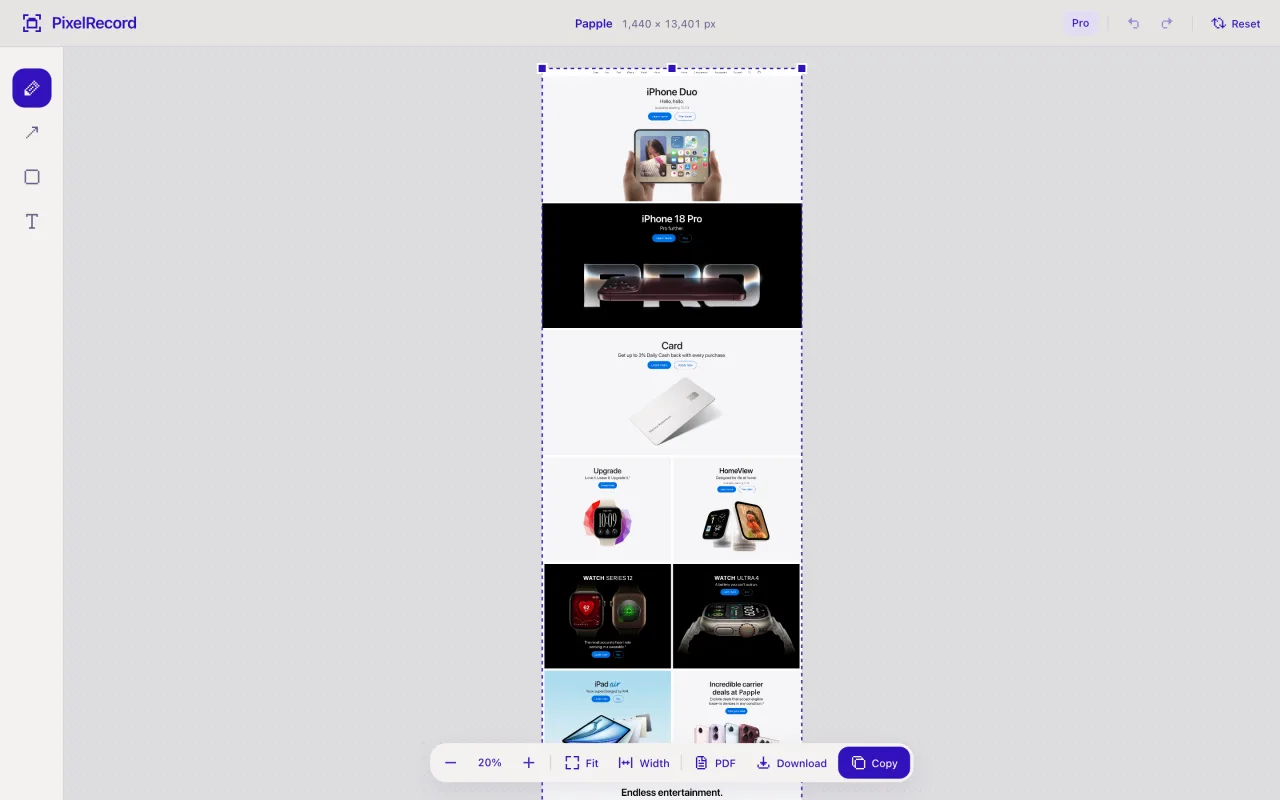
The whole page in one image: 1,440 × 13,401 px, shown at 20% zoom. -
2
Crop to the part that matters
Drag the edges or corners of the blue frame to keep only the section you are talking about. The size shows as you drag. Keep a little surrounding context so the reader can tell where the detail sits.
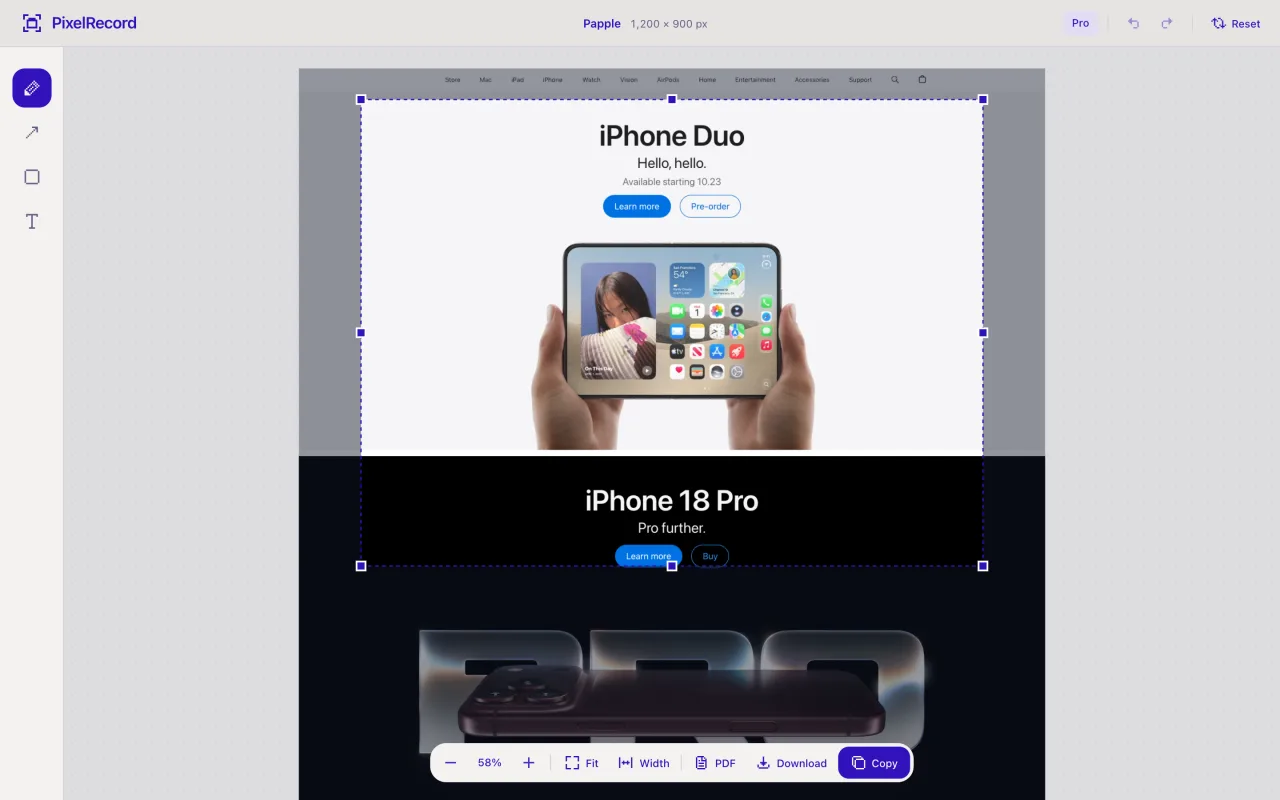
Crop frame around the top of the page; everything outside it is left out of the export. -
3
Add an arrow
Choose the arrow tool, drag from empty space to the detail, and add a short text note such as “Change this button” if the arrow alone is not enough. Shapes stay editable, so you can move or restyle them later, and Cmd/Ctrl+Z undoes a mistake.
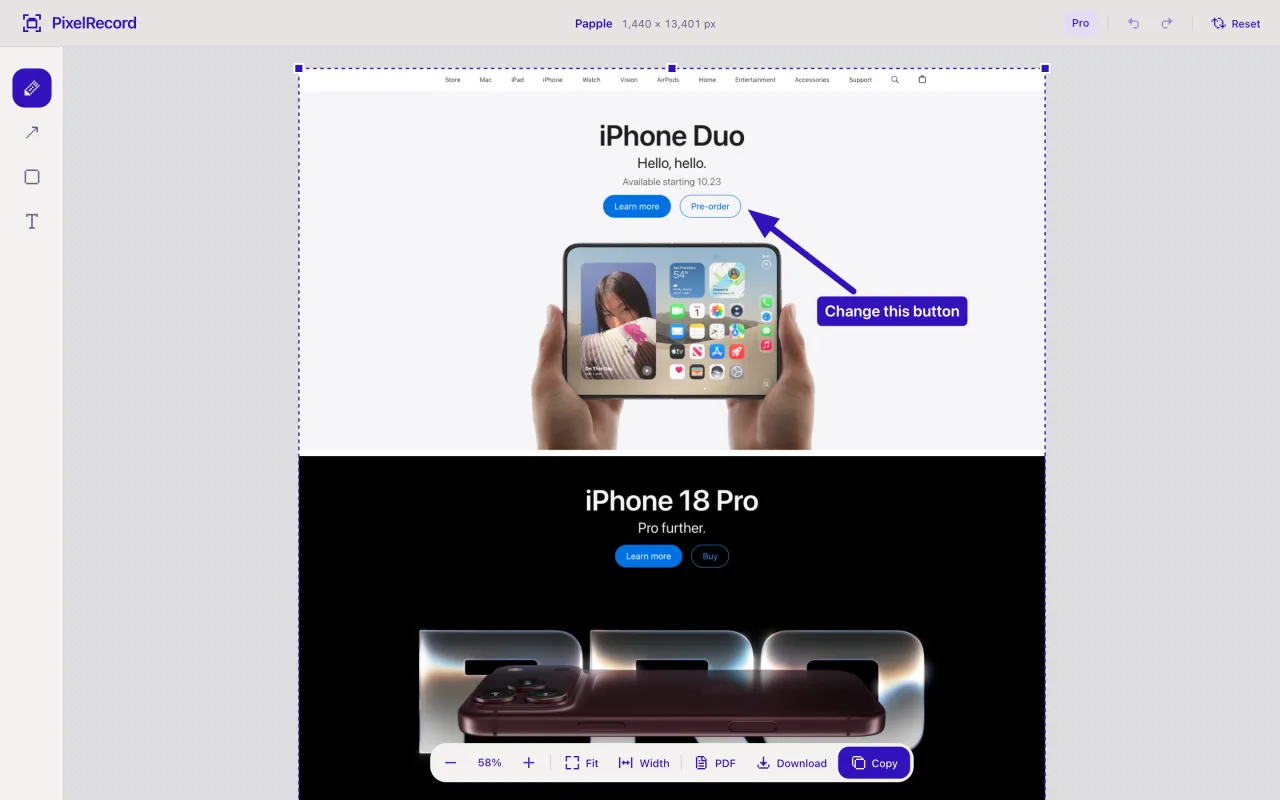
An arrow and a short note pointing at one button. -
4
Copy the result
Click Copy and paste the image straight into a chat, ticket, or document. If you need a file instead, save a PNG or a PDF from the same bar.
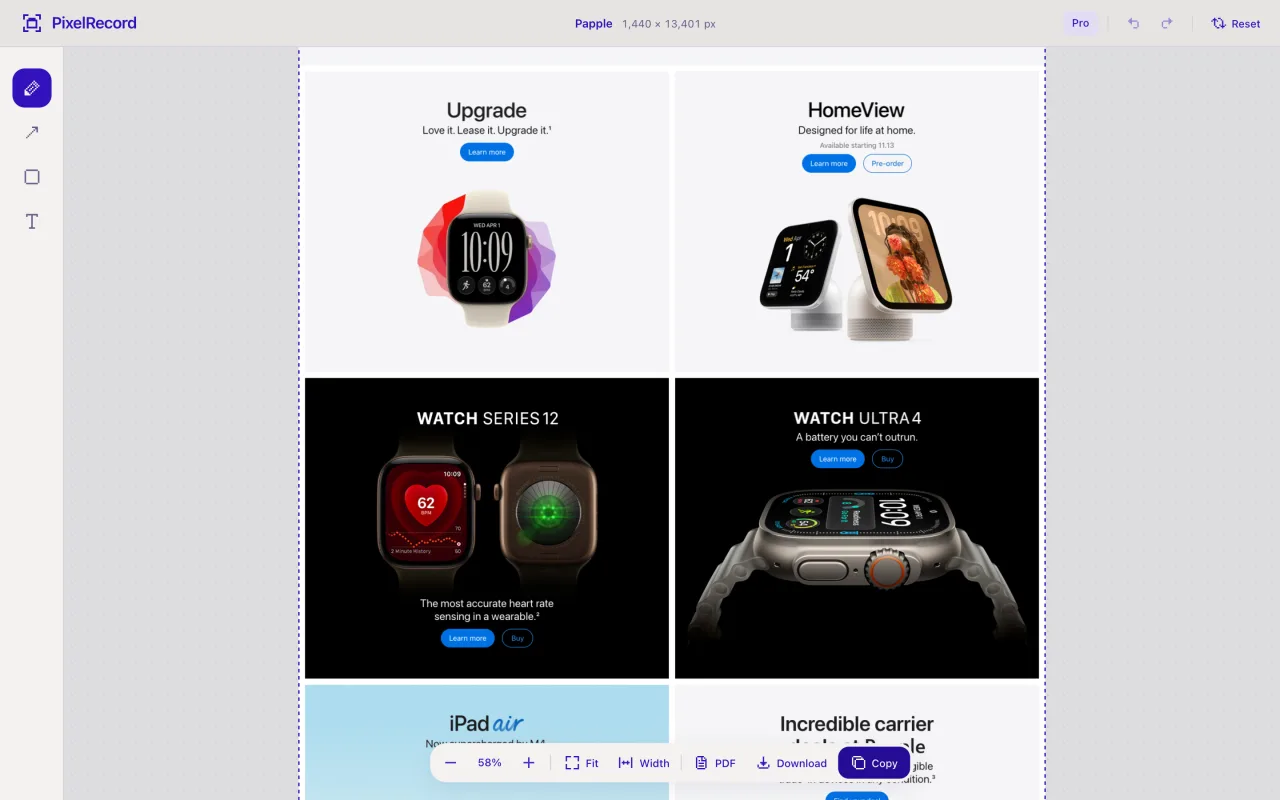
The bottom bar: Copy, Download (PNG) and PDF.
Before you share
Check what the image says before it leaves your screen.
- Hide personal details.Pixelate names, emails, and account numbers in the markup step, not afterwards.
- Keep one point per image.One arrow and one short note read faster than five.
- Read it at 100%.Text that is legible in the editor can be too small once pasted into a chat.
- Mind sticky headers.A header that follows you down the page can appear more than once in a long capture. Look before you send.
Free on the Chrome Web Store
Try the same steps on your own page.
PixelRecord captures the whole page, lets you crop and mark it up, then copies it or exports PNG and PDF. No account. Page content stays on your device. Seven captures a month are free.
Annotating screenshots FAQ.
Can I annotate a screenshot I already have?
PixelRecord edits its own captures. If you already have a PNG, any ordinary image editor will do for the markup step.
Should I save a PNG or a PDF?
Use PNG for pasting into chats and tickets. A PDF suits a long page you want to keep as one document, or split into A4 or Letter pages for printing.
Does the page leave my computer?
No. Capture, editing, copying, and export run inside Chrome on your device. Read the privacy policy for the details, including what the license check sends.
What does it cost?
Seven captures a month are free. Pro is a one-time purchase that removes the limit.